---
title: Transfer Files Using iTunes
description: Transfer FileOpen-protected documents to your iOS device using iTunes.
---
[](https://www.fileopen.com)
# How-to: Share FileOpen Protected-Documents Using iTunes
1. Connect your iOS device to your computer.
2. Open iTunes on your computer.
3. Select your iOS device from the Devices section on the left side of iTunes.
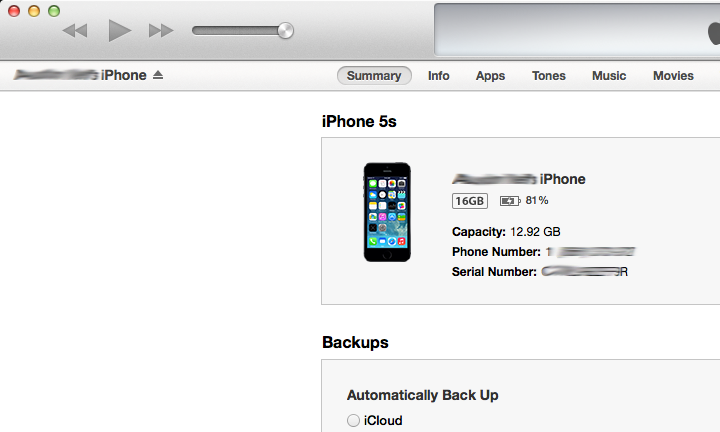
4. Click the Apps tab and scroll down to the bottom of the page.
**Note**: If you do not see the File Sharing section shown in the image below, your iOS device does not have any apps installed which support File Sharing, such as the FileOpen Viewer App. [Get the FileOpen Viewer App now>>](https://itunes.apple.com/us/app/fileopen-viewer/id520287055?ls=1&mt=8%20)
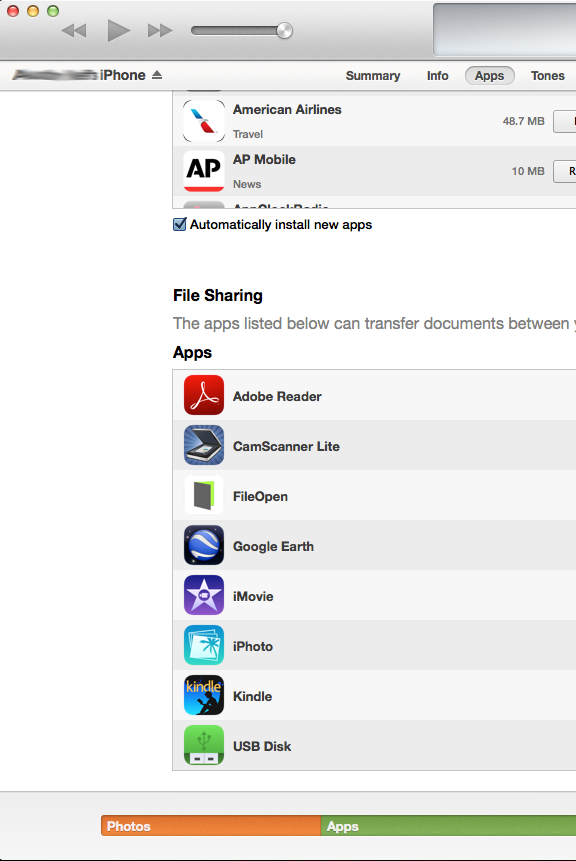
5. Once you have the App, you can drag and drop files into the Documents list to send them to the app on your iOS device. You can also click the Add button, locate the file or files you want to send from your computer, and then click the Choose.

6. The file will then appear in the FileOpen Viewer App displayed in iTunes.

The file will also be available in the Local tab within the FileOpen Viewer App on your iOS device.

###### Support
[Get The Plugin](http://plugin.fileopen.com/all.aspx)
[Plugin FAQ](https://www.fileopen.com/products/client-faq)
[Troubleshooting FAQ](https://www.fileopen.com/products/troubleshooting-faq)
[Submit a Case](https://www.fileopen.com/request-tech-support)
###### Products
[FileOpen RightsManager](https://www.fileopen.com/products/rightsmanager)
[FileOpen RightsServer](https://www.fileopen.com/products/rightsserver)
[FileOpen Developer Toolkit](https://www.fileopen.com/products/developer-toolkit)
[Client Overview](https://www.fileopen.com/products/fileopen-client-overview)
###### Resources
[Learning Resources](https://www.fileopen.com/fileopen-whitepapers)
[Solutions Overview](https://www.fileopen.com/document_security_solutions/industry)
[Document Security Blog](https://www.fileopen.com/blog)
###### About
[About FileOpen](https://www.fileopen.com/company/about-fileopen)
[Why FileOpen?](https://www.fileopen.com/company/why-fileopen)
[Partners](https://www.fileopen.com/company/partnering-opportunities)
[Privacy Policy](https://www.fileopen.com/company/privacy-policy)

1010 Fair Ave, Suite A, Santa Cruz CA 95060 | [831.706.2170](tel:%20+18317062170) | [info@fileopen.com](mailto:info@fileopen.com)
Sign up for email udpates
© 2026 FileOpen Systems Inc.
